
How to Send a Link With Instagram Story Reply Automation
Set up a Story reply keyword that sends a useful link. Follow a worked example with Story copy, a sample DM, and four checks to run from a second account.
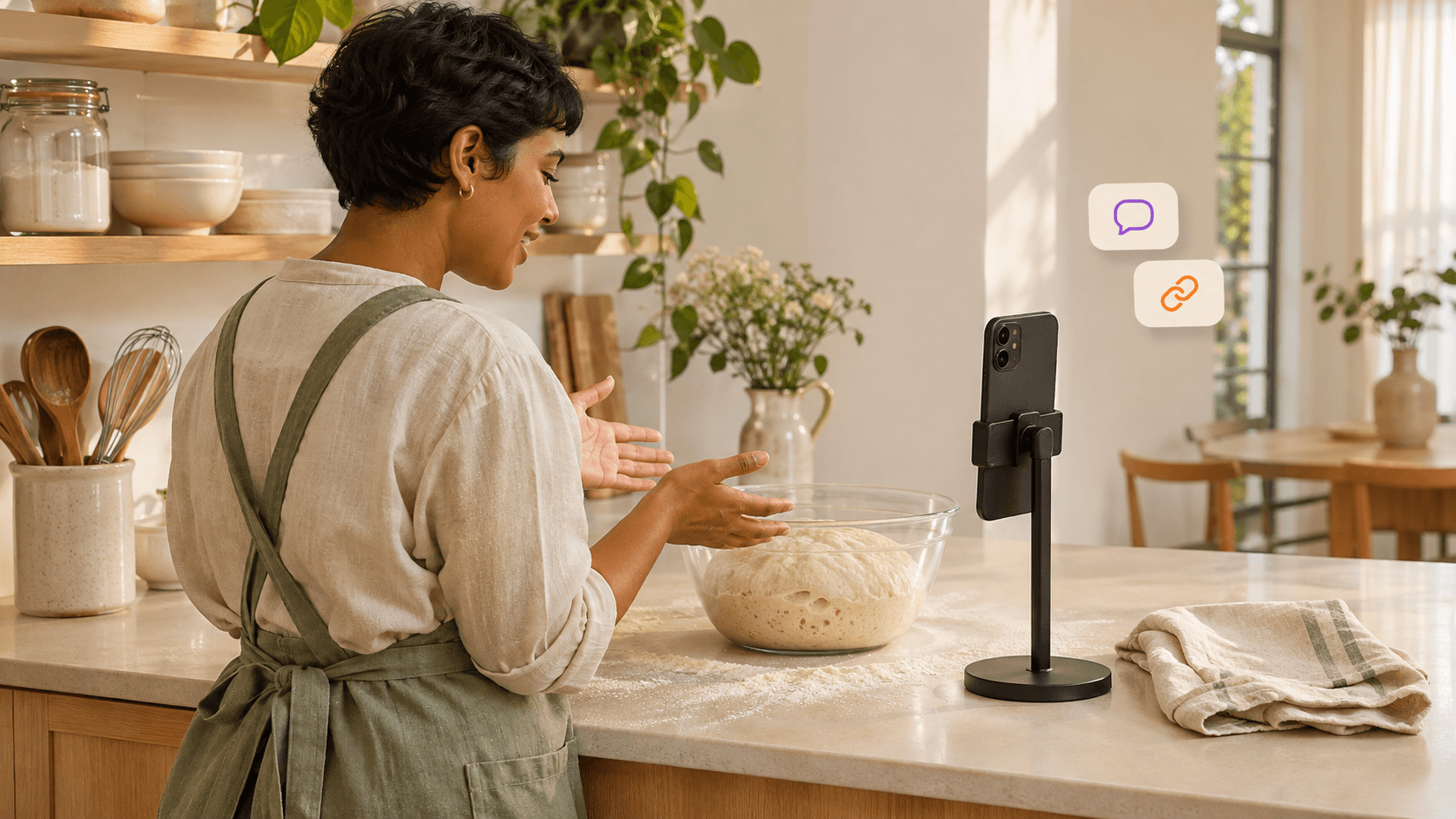
A baking creator posts a Story showing how their dough looks before shaping. The last frame says “Reply DOUGHPLAN and I’ll send you my overnight bread schedule.” A viewer types the word into the Story’s message field and gets a DM with the schedule.
To set up an Instagram Story reply automation, pair a typed reply keyword with one DM that delivers the resource. Choose a keyword you can reuse on Stories that promise the same thing. In Solovio, the rule applies to matching replies across your Stories, so the keyword is how you keep the reply tied to the right offer. Solovio’s Story automation overview
Ask for a typed reply in the Story
Show enough of the resource for people to know what they’re asking for. For an overnight bread schedule, a frame of the risen dough can establish the result. Use the next frame to tell viewers what the schedule covers and where to type the keyword.
Baking tomorrow? My overnight bread schedule shows when to mix, fold, refrigerate, and bake. Reply DOUGHPLAN to this Story and I’ll send it in a DM.
For this flow, ask people to send a message from the Story. A view, like, or sticker vote does not send the text keyword your rule checks. A regular message typed in the inbox is a separate trigger in Solovio. Meta’s messaging documentation describes messages from the Instagram user as the starting point for conversations through the API. Meta’s Instagram API documentation
Set up the Story keyword and DM in Solovio
- Open Automation in Solovio Studio with your Instagram account connected. Choose Create automation, then select Story automation as the automation type.
- Enter the keyword in Keyword to reply to. Use
DOUGHPLANfor this example. Solovio matches the full reply text after trimming spaces and ignoring case. BothdoughplanandDOUGHPLANmatch.DOUGHPLAN pleaseandDOUGHPLAN!are different messages. - Choose Send resource directly and write the DM reply. Use Add resource button to attach the link. Label it Open bread schedule so people know where it goes.
- Create the automation and confirm it is active. Post the Story once the rule is ready, and test the live Story from a separate Instagram account.
Here’s a sample DM to adapt.
Here’s the overnight bread schedule from my Story. It starts with the evening mix and ends with the next morning’s bake. Tap Open bread schedule to see the steps.
Use a link that opens on a phone without your own account signed in. If the page requires an email address, say so in the Story and DM so the viewer knows what happens after tapping. If you’re sharing a printable version, check the permissions and download path first. How to send a free PDF through Instagram DMs
Test both the reply and the link
Before promoting the Story elsewhere, run a few checks from a second account. Wait for the first DM and open the link inside Instagram. Then send the other test messages separately so you can see which action produced a response.
| From your test account | What to look for |
|---|---|
Reply DOUGHPLAN directly to the Story | The prepared DM arrives with the schedule link. |
Reply DOUGHPLAN please directly to the Story | This exact-keyword rule stays quiet. |
Send DOUGHPLAN as a regular inbox DM | The Story rule stays quiet. A separately configured DM keyword rule can respond. |
| Open the schedule link from the reply | The promised page loads on a phone, and any access or download step is clear. |
If the first test sends no DM, check that you replied from the Story itself and that the full reply matches the keyword. Confirm the rule is active on the account that posted the Story. If the account needs to reconnect or has reached its automated DM allowance, resolve that in Studio and run a fresh test. If the message arrives but the page fails, check the destination from the receiving account.
Give each resource its own keyword
Keep DOUGHPLAN for the overnight schedule across any Story where you offer it. If you introduce a second resource, choose a different word, such as STARTER for a sourdough starter guide. Reusing DOUGHPLAN for the new guide would make the same Story reply ambiguous. When you retire a resource, check any Stories saved to Highlights that still advertise it and update or remove the invitation before pausing the rule.
If someone asks a baking question after receiving the schedule, answer that question in the thread. The automation handles the repeatable link delivery and gives you time for the replies that need context. For an offer you want to keep on a Reel, use the separate comment-to-DM setup. How to send a link from an Instagram comment